Follow production from your phone with the ModernMES mobile app
The ModernMES Android app is not a web page squeezed onto a phone. It was written for the phone. It shows what needs attention first, with the same figures and names as the panel, and it notifies you when a machine stops or maintenance runs late. It comes with every plan at no extra cost.
The app is on Google Play for Android phones, and the iOS version is on its way. It is available in English and Turkish, with a light and a dark theme.
What you can do from your phone
The app shows the data in your panel. Live screens refresh every 30 seconds while they are open.
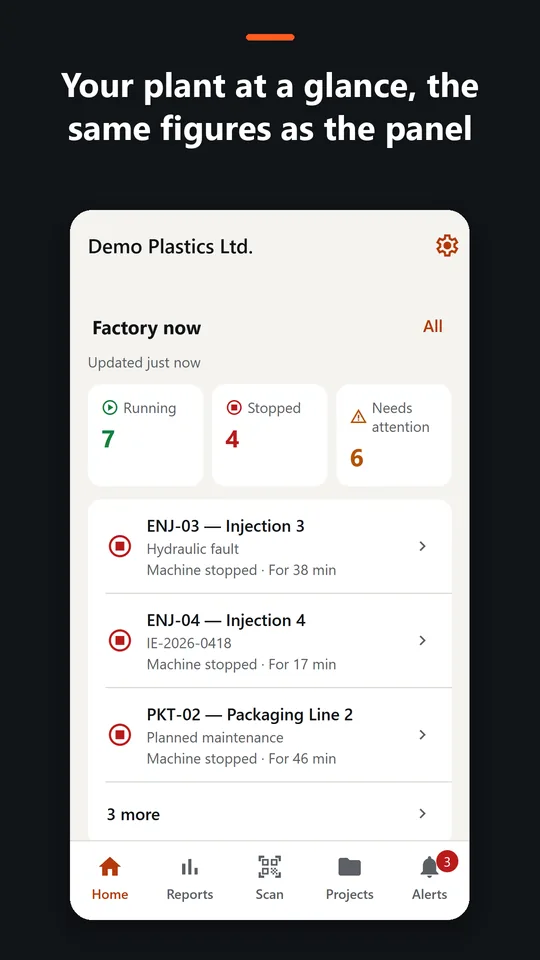
Plant now
How many machines are running, how many are stopped and what to look at first. Below that, the figures from the panel home page, today's hourly work, upcoming deadlines and work order states.
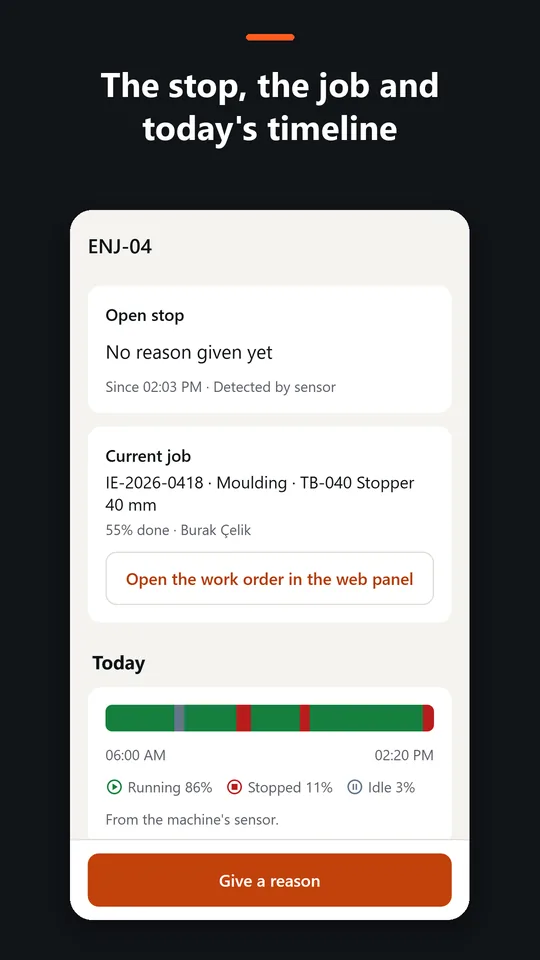
Machines
Each machine's state, its job and operator, and its open stop. The machine screen shows today's run and stop timeline and the latest events.
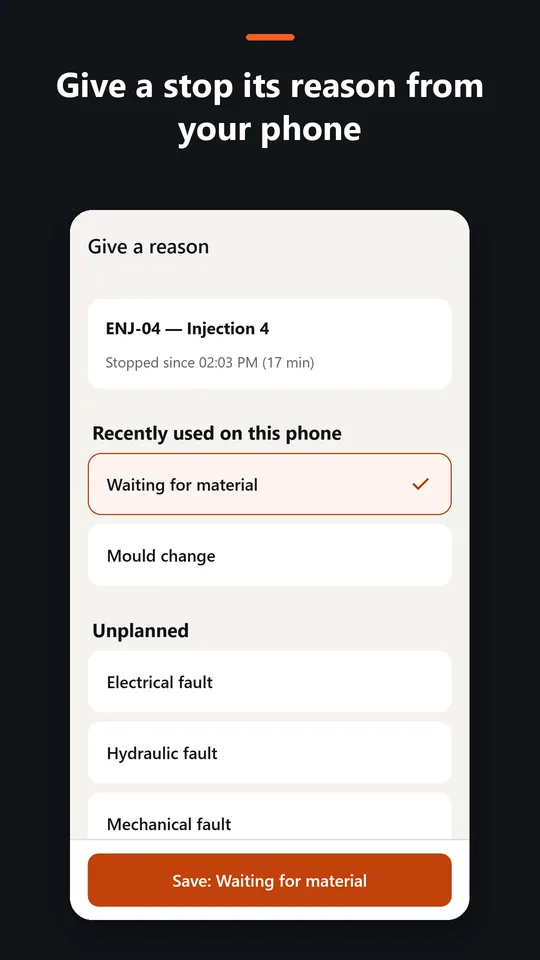
Stop reasons
Stops with no reason wait in a list. Pick a stop and give its reason from your phone, with a note if you like. The reasons you used last come first.
Running jobs and projects
The job furthest over plan comes first. Each project's status, deadline, progress and deadline forecast.
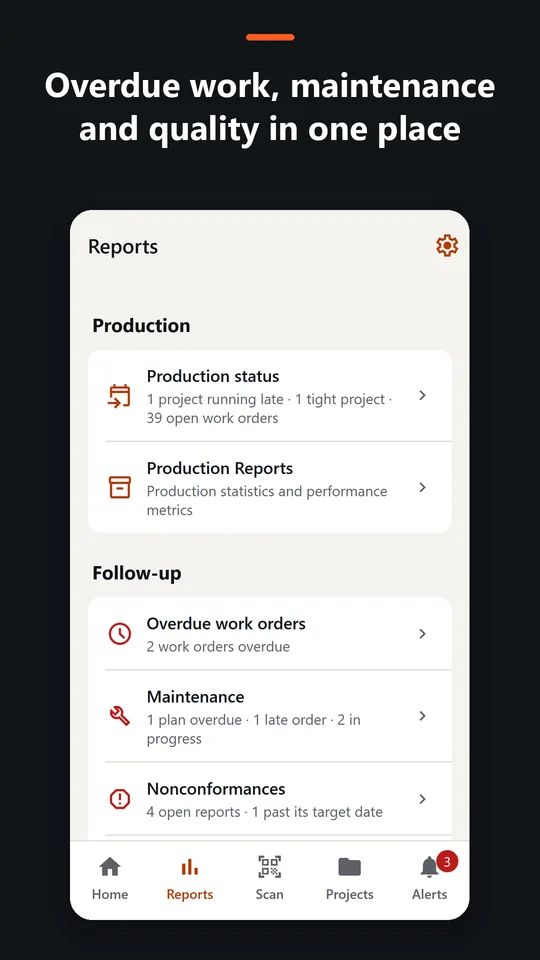
Reports
Production status and production reports, the OEE and quality boards. The figures match the reports in the panel.
Maintenance
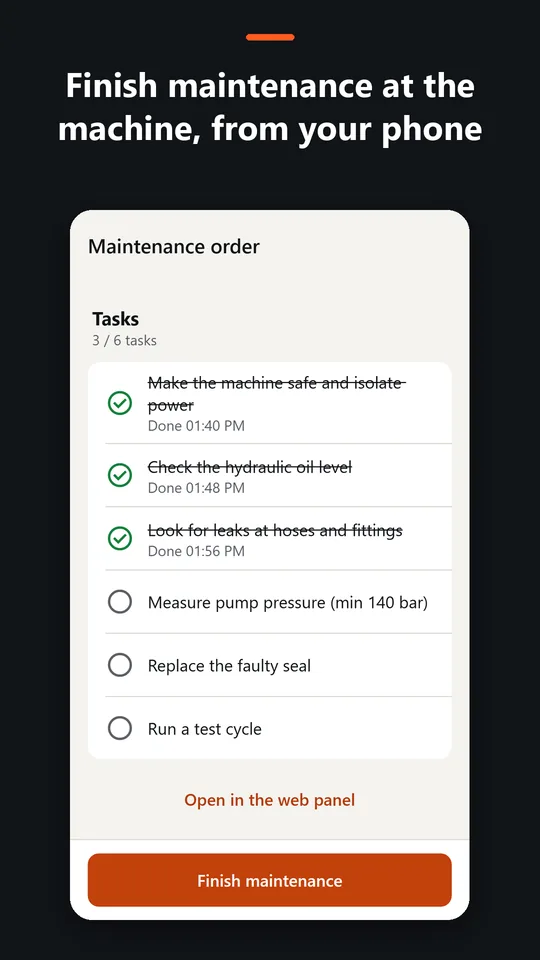
Overdue plans, running and planned maintenance orders. Start a maintenance order from your phone at the machine, tick off its tasks and finish it.
Overdue work, nonconformances and stock
Work orders past their due date, the most overdue first. Open nonconformance reports (NCR) with their findings and actions. Parts below their minimum stock, and molds and tools at the end of their life or due for maintenance.
Scanning
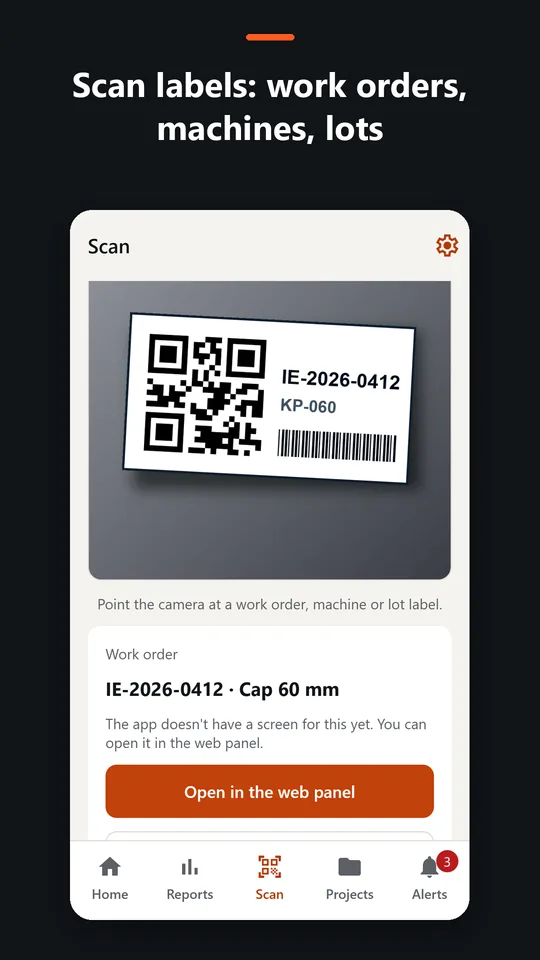
Scan the QR code or barcode on a work order card, a machine label or a lot label to open that record.
The OEE, quality, maintenance, nonconformance, stock and mold parts show when that module is on for your company.
Alerts come to your phone
You do not have to keep an eye on the panel. Your phone gets a notification when
- a machine has been stopped longer than you set
- a stop with no reason drags on
- a maintenance order is opened or runs late
- a quality check fails
Tapping a notification opens the machine, the stop or the maintenance order. Your admin chooses in the panel which roles get which alert and after how long. Each user can also change their own notification preferences under their account in the panel.
Who it is for
Plant and production managers
See the state of the plant at a glance when away from the office, and follow overdue work and project deadline forecasts.
Supervisors and shift leads
Hear about a stopped machine from a notification, close stops with no reason standing at the machine, and see where running jobs are against plan.
Maintenance teams
Get new and overdue maintenance orders as notifications, then start, tick off and finish the work from the phone at the machine.
Quality staff
Hear about failed quality checks, and see open nonconformance reports with the overdue and most severe ones first.
In every plan
The mobile app is not a separate product or an add-on. It comes with every plan and there is no fee per device. The users in your plan sign in on their phones with the account they use in the panel. Which parts of the app you see depends on the modules switched on for your company. Shop-floor terminal accounts are only for the terminal and cannot sign in to the app.
How to get started
- 1
Create an account
Sign up for ModernMES on the web. It is free for 14 days and we do not ask for a credit card. Add your machines and users in the panel.
- 2
Install the app
Install the ModernMES app on your Android phone from Google Play.
- 3
Sign in with the same account
Use the email and password you use in the panel. To skip the password, open "Sign in on the mobile app" from the menu at the top right of the panel and scan the QR code with "Sign in with QR" on the app's sign-in screen.
- 4
Allow notifications
After you sign in, the app asks to send notifications. Allow it and alerts come to that phone.
Frequently asked questions
Does the ModernMES mobile app cost extra?
No. The app comes with every plan, with no extra charge and no fee per device. The users in your plan sign in on their phones with the same account.
Is there an iPhone app?
The iOS version is on its way. Until then you can open the panel in the browser on an iPhone.
Does it work with ModernMES on our own server?
Yes. Enter your panel's address under Server on the sign-in screen. The phone has to reach your server over HTTPS.
Do operators use the app?
The app is for managers and supervisors. Operators start and finish jobs on the operator terminal, which runs in a browser on a tablet, a shop-floor PC or their own phone paired with a QR code. Shop-floor terminal accounts cannot sign in to the mobile app.
Which languages does the app speak?
English and Turkish. You change the language in the app's settings. It is saved to your account too, and notifications arrive in that language.
What happens on a poor connection?
Every live screen says how old its data is. If a refresh fails it keeps showing the last data, says it is offline and tries again when you tap. A change that cannot be saved is not queued. It is undone on screen and you are told.
Start with an account
Create your account on the web, then sign in to the app with it. You pay nothing for 14 days.
No credit card needed. Nothing is charged when the trial ends unless you choose a plan.